ParametricBG
スクリーンショット
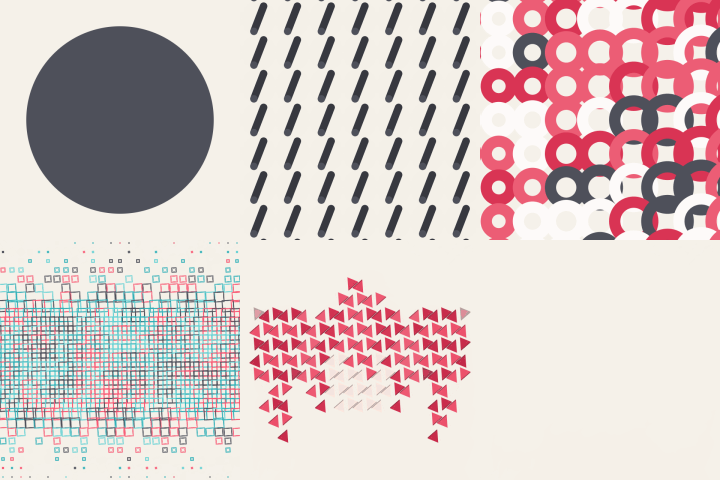
概要
パラメトリックパターン背景を作るカスタムオブジェクトです
詳細説明
ParametricBG
▶️ 紹介動画(ニコニコ)
日本語 ▲ 🌐 Switch Language
概要
ParametricBG v1.0.0 は、AviUtl2 でパラメトリックパターン背景を作るカスタムオブジェクトです。格子の間隔と図形サイズを調整して、水玉模様、通風口のパターン、十字格子、ハーフトーンのテクスチャ背景を作れます。
「カスタムオブジェクト → ParametricBG」から用途に合わせて選択します。
| スクリプト | 用途 |
|---|---|
| ParametricBG - リニア | 規則的な点の配置と、一方向のサイズグラデーション。ノイズで不規則な変化も加えられます。 |
| ParametricBG - シェイプ | 円、多角形、画像の輪郭を基準に、中心から周辺へサイズと密度を変化させます。 |
| ParametricBG - イメージ | 参照画像の明暗を図形サイズや密度へ置き換えます。 |
インストール
ParametricBG_v1.0.0.au2pkg.zip を解凍せず、AviUtl2 のプレビュー画面へドラッグ&ドロップしてください。
標準は日本語です。英語と簡体中国語の言語ファイルも同梱しており、AviUtl2 の言語設定に合わせて表示を切り替えられます。
設定項目
選んだスクリプトや設定によって、表示される項目が変わります。px は生成する画布上のピクセル数です。位置の X・Y は画布の中心を基準にします。
背景
| 項目 | 使い方 |
|---|---|
カスタムサイズキャンバス幅pxキャンバス高さpx |
通常はプロジェクトの画面サイズを使います。カスタムサイズを有効にすると幅と高さを指定できます。 |
背景色 |
図形の背面に敷く色です。 |
背景透過背景不透明度% |
背景透過を有効にすると背景不透明度を調整できます。0 で背景が透明になります。図形の不透明度とは別です。 |
図形不透明度% |
図形全体の不透明度です。0 で図形が見えなくなります。 |
出力モード |
カラーは通常の図形、マスクは白い図形と黒い背景、反転マスクはその逆を出力します。透明くり抜きは図形のある部分で背景の透明度を下げます。 |
余白X px余白Y px端の図形除外 |
余白 X・Y は図形を描く範囲を内側へ狭めます。端の図形除外を有効にすると、範囲からはみ出す図形を丸ごと除外します。 |
形状
ここで設定する形状が A です。B は「形状変化」で設定します。厚みと線幅は A・B 共通です。
| 項目 | 使い方 |
|---|---|
形状素材ファイル |
円、四角形、三角形、五角形、六角形、星型、ハート、ひし形、十字、四芒星の 10 種類があります。「(ファイルから選択)」では PNG・SVG などのローカル素材を読み込みます。 |
長さpx高さpx |
図形の横方向の長さと縦方向の高さです。円の比率を変えると楕円になります。 |
角丸px |
角を丸めます。円とファイル素材では表示されません。 |
厚みpx押出方向° |
厚みは図形を押し出したように見せる 2D 表現で、0 は平面です。押出方向の初期値は 45°。厚みを付けてから図形を回転します。 |
線幅px |
輪郭の太さを px で指定します。小さくすると内側が抜け、大きくすると内部が埋まります。初期値は 2048、最小値は 1 です。 |
回転°向き |
回転は各図形の角度です。向きは三角形・五角形・星型・ハートに使い、固定、一行おきに反転、または市松反転を選びます。 |
十字の太さ%星のくぼみ% |
十字の太さは腕の幅、星のくぼみは四芒星の内側のくびれを調整します。対象の形状を選んだときに表示されます。 |
合わせ方 |
全体を表示は縦横比を保って収め、切抜き表示は縦横比を保って枠を埋めます。引き伸ばしは指定した長さと高さに合わせます。 |
カラーモード図形色 |
単色は図形色を使います。4色ランダムは各点へ色を割り当てます。素材の色は画像の原色を保ち、内蔵図形では図形色を使います。イメージでは参照画像の色も選べます。 |
ランダム色1ランダム色2ランダム色3ランダム色4色1%色2%色3%色4% |
4 色と、それぞれの出やすさを設定します。重みは相対値なので合計 100 にそろえる必要はありません。使わない色は 0 にし、少なくとも 1 色は 0 より大きくしてください。 |
カラーシード |
ランダム配色の並びを変えます。同じ配置とシードなら同じ配色になります。配置シードとは別です。 |
格子
| 項目 | 使い方 |
|---|---|
横間隔px縦間隔px |
図形中心どうしの横・縦の間隔です。図形サイズより間隔が小さいと図形が重なります。 |
交互ずらし六角格子 |
交互ずらしは一行おきに横へ半間隔ずらします。六角格子は横間隔から縦間隔を決めて交互配置するため、縦間隔と交互ずらしの項目は隠れます。 |
格子オフセットX px格子オフセットY px格子回転° |
格子全体の位置と角度です。図形の回転とは別に、並びの方向を変えます。 |
位置乱れ% |
各点の位置を間隔に応じた範囲でランダムにずらします。0 では格子点に整列します。 |
発生密度%配置シード |
密度を下げると点をランダムに間引きます。配置シードで間引きや位置乱れの並びを変えます。 |
格子不透明度%格子色 |
格子線の不透明度と色です。不透明度は初期値が 0 で、格子線を描きません。表示した線は出力画像にも含まれます。 |
サイズ分布
リニアは軸に沿って、シェイプは境界の中心から周辺へ、イメージは参照画像の明暗に合わせてサイズを変えます。
| 項目 | 使い方 |
|---|---|
最小サイズ%最小サイズ(100オフ) |
基準サイズに対する最小サイズの割合です。リニアは初期値 100 でサイズ差がなく、下げるとグラデーションが現れます。シェイプとイメージの初期値は 0 です。 |
変化強度%サイズ分布反転変化曲線 |
強度はサイズ変化の量、反転は変化の向き、曲線はなめらか・リニア・イーズイン・イーズアウトの変わり方を指定します。強度 0 ではサイズ分布による大小差がなくなります。 |
リニア中心X pxリニア中心Y pxリニア角度°リニア長さpx |
リニア用。中心、角度、長さでグラデーション軸を決めます。長さを大きくすると変化が広がり、0 では軸の進行値を 0 に固定します。 |
ラジアル境界境界素材ファイル境界サンプリング |
シェイプ用。内蔵形状またはファイルの輪郭を境界に使います。ファイルでは Alpha で不透明な部分、明るさで暗い部分を読み取ります。透明な部分は境界に含めません。 |
ラジアル中心X pxラジアル中心Y px横半径px縦半径pxラジアル角度° |
シェイプ用。境界の中心、横半径、縦半径、角度を調整します。横半径と縦半径を変えると境界を縦横に伸ばせます。 |
集中度% |
シェイプ用。中心から境界へ向かうサイズ変化の配分を調整します。 |
シェイプは通常、中心側が大きく周辺側が小さい配置です。反転すると中心側が小さくなります。形状変化がサイズ分布に追従している場合は、最小サイズが 100 でも、その分布を形状変化の進行に使います。
ノイズ設定(リニア)
| 項目 | 使い方 |
|---|---|
ノイズ強度% |
初期値 0 でノイズは無効です。上げると軸に沿ったサイズ分布へ不規則な変化を混ぜます。 |
ノイズスケールpx |
ノイズ模様の大きさです。大きいほど緩やかなまとまり、小さいほど細かい変化になります。 |
ノイズ層数 |
ノイズを重ねる層数です。増やすと細かい変化が加わり、処理も増えます。 |
ノイズX pxノイズY pxノイズ位相° |
ノイズ模様の位置と位相を調整します。時間で動かす場合は「動き」のノイズ速度を使います。 |
サイズ差を見たい場合は、サイズ分布の最小サイズも 100 より下げてください。
エッジ設定(シェイプ)
| 項目 | 使い方 |
|---|---|
エッジランダム |
有効にすると境界付近で図形をランダムに間引きます。サイズ分布の設定も引き続き使えます。 |
整列範囲% |
中心側に残す規則的な領域の広さです。大きいほど規則的な範囲が広がります。 |
エッジぼかし% |
規則的な領域からランダムな領域へ移る幅です。小さいと切り替わりが急になります。 |
エッジ密度% |
変化が進んだ側に残す点の密度です。低くすると疎になります。 |
端部を隠す |
変化の末端に達した領域の点を非表示にします。サイズ分布を反転すると、隠れる側も変わります。 |
サイズ分布を反転すると、ランダムな変化を内側へ向けられます。
形状変化
形状分類の図形を A、この分類の図形を B として扱います。B の設定は形状変化を有効にすると表示されます。
| 項目 | 使い方 |
|---|---|
B 形状変化B 形状B 素材ファイル |
形状変化を有効にし、B の図形または素材を選択します。内蔵図形どうしは輪郭を変化させ、画像素材を含む組み合わせは透明度を使って切り替えます。 |
B 長さpxB 高さpxB 角丸pxB 回転°B 向き |
B の長さ、高さ、角丸、回転、向きです。各点の進行に応じて A から B の値へ変化します。厚みと線幅は「形状」の設定を共用します。 |
B 変化ソースB 変化軸X pxB 変化軸Y pxB 変化軸角度°B 変化軸長px |
専用リニア軸では B の変化軸の中心・角度・長さを使います。分布に追従ではサイズ分布を使い、イメージでは参照画像の明暗に従います。 |
B 形状変化反転B 最短回転ルート |
形状変化反転は A と B の進行方向を入れ替えます。最短回転ルートは、角度の差が短い向きへ回転させます。 |
B カラーモードB 図形色 |
初期値は「Aカラーに従う」です。A のカラーモード・色・ランダム配色を使います。独立した単色、4色ランダム、素材の色へも切り替えられます。イメージでは参照画像の色も選べます。 |
B ランダム色1B ランダム色2B ランダム色3B ランダム色4B 色1%B 色2%B 色3%B 色4%B カラーシード |
B を4色ランダムにすると使えます。B 専用の色、重み、シードなので A とは別の配色にできます。Aカラーに従う場合は A の値を使い、これらの項目は隠れます。 |
A を4色ランダム、B を素材の色にすれば、色付きの図形から PNG の原色へ移れます。「Aカラーに従う」で素材の色を選んでいる場合は、各形状がそれぞれの素材色を使います。
画像パンチング(イメージ)
| 項目 | 使い方 |
|---|---|
参照画像 |
明暗と透明度を参照する画像です。 |
元画像表示 |
オフは図形だけを背景へ描きます。元画像を残す、またはモノクロ元画像を選ぶと、図形の背面に参照画像を表示します。カラー出力で使えます。 |
画像の合わせ方画像X px画像Y px画像拡大率%画像回転° |
全体表示・切抜き・引き伸ばしを選び、位置、拡大率、回転を調整します。背面に残す元画像も同じ配置を使います。 |
明暗マッピング先 |
サイズは図形の大きさ、密度は点の数、サイズと密度は両方へ明暗を反映します。通常は暗い部分ほど大きく、または密になります。 |
サンプリング細部保持% |
範囲平均は周辺を含めて読み取り、点サンプルは中心を読み取ります。細部保持は範囲平均のときに表示され、局所の明暗差の反映を調整します。 |
コントラスト%階調強調% |
コントラストは明暗の差、階調強調は中間調の変わり方を調整します。 |
明暗反転 |
明暗の割り当てを反転し、明るい部分を大きく、または密にします。 |
余白しきい値%閾値ぼかし% |
余白しきい値を上げると弱い部分を除きやすくなります。閾値ぼかしは、その境目を柔らかくします。 |
参照画像の色は、ずらす前の格子点に対応する色を使います。配色は「形状」または B のカラーモードで選びます。
動き
| 項目 | 使い方 |
|---|---|
移動X px/s移動Y px/s |
格子全体を横・縦へ動かす速度です。単位は px/s。0 ではその方向へ移動しません。 |
サイズ脈動%脈動周期s脈動位相° |
サイズ脈動は図形サイズを周期的に変えます。0 で無効。周期は秒、位相は周期の開始位置です。 |
ノイズ速度°/s |
リニア専用。ノイズ位相を毎秒どれだけ進めるか指定します。0 は静止です。 |
エフェクト処理
格子の変形は点の位置を変えます。個別エフェクトは描いた図形へ後続の効果をかけます。
| 項目 | 使い方 |
|---|---|
格子の変形変形タイプ |
格子の変形を有効にし、ウェーブ、波紋、渦巻き、膨張・収縮を選びます。図形自体の輪郭は保たれ、格子線も追従します。 |
変形強度% |
変形の強さです。0 では変形を行いません。 |
変形範囲px |
ウェーブでは横方向への移動量、波紋では中心付近の移り変わり、渦巻きと膨張・収縮では影響範囲を調整します。 |
波長px |
ウェーブと波紋の間隔です。小さくすると波が細かく並びます。他のタイプでは隠れます。 |
変形中心X px変形中心Y px |
変形の基準位置です。0, 0 は画布の中心です。 |
変形位相°変形速度°/s |
位相は変形の進み具合、速度は毎秒の位相変化です。速度の初期値は 0 で静止し、0 以外で自動的に動きます。 |
変形を反転 |
変形の向きを反転します。膨張・収縮では内側へ縮む向きに切り替えられます。 |
個別エフェクト |
カラー出力で、後続のエフェクトを各図形へ個別にかけます。背景と格子線は対象外です。図形数が増えるほど処理負荷も増えます。 |
中文
概要
ParametricBG v1.0.0 是用于 AviUtl2 的参数化图案背景自定义物件。调整网格间距和图形大小,可以制作规则点阵、通风孔、十字网格及半色调纹理背景。
从“自定义物件(カスタムオブジェクト)→ ParametricBG”中选择脚本。
| 脚本 | 用途 |
|---|---|
| ParametricBG - 线性 | 生成规则点阵或沿指定方向变化的尺寸渐变,也可加入噪波,形成不规则变化。 |
| ParametricBG - 图形 | 以圆、多边形或图片轮廓为边界,控制图形从中心到边缘的尺寸与密度。 |
| ParametricBG - 图像 | 将参考图片的明暗转换成图形的尺寸或密度,生成网点图像。 |
安装
不要解压 ParametricBG_v1.0.0.au2pkg.zip,直接将其拖放到 AviUtl2 的预览画面。
默认日语。安装包包含英文和简体中文语言文件,可随 AviUtl2 的语言设置切换显示。
设置项目
不同脚本或选项下,显示的设置会有所不同。px 以生成画布的像素为单位,位置 X、Y 以画布中心为基准。
背景
| 项目 | 作用与用法 |
|---|---|
自定义画布画布宽px画布高px |
默认使用工程画面尺寸。勾选自定义画布后,可单独设置画布宽和画布高。 |
背景颜色 |
设置图形背后的底色。 |
透明背景背景不透明度% |
勾选透明背景后显示背景不透明度。设为 0 时背景透明,与图形不透明度分开控制。 |
图形不透明度% |
控制所有图形的不透明度;0 时图形不可见。 |
输出方式 |
彩色图案输出正常配色;图形遮罩输出白图形、黑背景,反向遮罩则黑白互换;真正透明穿孔会将图形所在区域的背景镂空。 |
边距X px边距Y px仅保留完整单元 |
边距 X、Y 缩小图形的绘制范围。勾选仅保留完整单元后,超出范围的图形会整枚隐藏,避免边缘出现半个图形。 |
形状
这里设置的是 A 形状,B 在“形状过渡”中设置。厚度和线宽由两端共用。
| 项目 | 作用与用法 |
|---|---|
形状素材文件 |
内置圆、方形、三角形、五边形、六边形、五角星、心形、菱形、加号和四角星共十种图形。选择“(从文件中选择)”可读取本地 PNG、SVG 等素材。 |
长px高px |
分别控制图形在平面上的横向长度和纵向高度。改变圆形的长高比例可得到椭圆。 |
圆角px |
将图形的尖角变圆;圆形和文件素材不显示此项。 |
宽px(厚度)挤出方向° |
厚度用于制作视觉上的立体侧面,0 为平面。厚度方向默认 45°,先生成厚度,再执行图形旋转。 |
线宽px |
按 px 设置轮廓宽度。数值较小时向内镂空,较大时填满内部。默认 2048,最小为 1。 |
旋转°朝向 |
旋转控制每枚图形的角度。朝向适用于三角形、五边形、五角星和心形,可选择固定、隔行翻转或棋盘翻转。 |
加号臂宽%星形内凹% |
加号臂宽控制加号的粗细,星型内凹控制四角星的内侧收缩程度。选择对应形状后才显示。 |
素材适配 |
等比完整保留素材全貌,等比裁切在保持比例的同时铺满范围,拉伸则直接适配指定长高。 |
图形着色图形颜色 |
单色使用图形颜色;四色随机为各点分配颜色;素材原色保留图片本身的颜色,内置图形仍使用图形颜色。图像脚本还可选择参考图片原色。 |
随机色1随机色2随机色3随机色4颜色1%颜色2%颜色3%颜色4% |
设置四种随机色及各自的出现权重。权重按相对比例分配,不必相加等于 100。不想使用的颜色可设为 0,至少保留一项非零权重。 |
颜色种子 |
改变随机配色的分布。相同布局和颜色种子会得到相同配色,与布局种子分开控制。 |
网格
| 项目 | 作用与用法 |
|---|---|
横向中心距px纵向中心距px |
控制图形中心之间的横向、纵向距离。间距小于图形尺寸时,图形可能重叠。 |
隔行错列六角紧密点阵 |
错列让相邻行错开半个横向间距。六角网格根据横向间距自动计算纵向间距并错列,此时隐藏纵向间距和普通错列设置。 |
网格偏移X px网格偏移Y px网格旋转° |
调整整个网格的位置和角度。网格旋转改变排列方向,与每枚图形自身的旋转分开。 |
随机错位% |
按网格间距为每个点加入随机位置偏移。0 时各点保持整齐排列。 |
出现密度%布局种子 |
降低出现密度会随机减少点的数量;布局种子控制随机错位和点的取舍。 |
网格不透明度%网格颜色 |
设置网格线的不透明度和颜色。默认不透明度为 0,不绘制网格线;打开后,网格线也会进入最终画面。 |
尺寸场
线性按轴向渐变,图形按中心与边缘分布,图像则按参考图片的明暗改变尺寸。
| 项目 | 作用与用法 |
|---|---|
最小尺寸%最小尺寸(100关闭) |
设置相对基础尺寸的最小比例。线性默认为 100,尺寸没有渐变差异,降低后出现渐变;图形和图像默认为 0。 |
渐变强度%尺寸方向反转过渡曲线 |
强度控制尺寸差异,反转交换变化方向,曲线决定平滑、线性、缓入或缓出的过渡。强度为 0 时,不再因尺寸场产生大小差异。 |
线性轴中心X px线性轴中心Y px线性轴角度°线性轴长度px |
线性专用。中心、角度和长度共同确定渐变轴。长度越大,变化范围越宽;长度为 0 时,轴向进度固定在 0 端。 |
径向边界边界素材文件边界取样 |
图形专用。可使用内置形状或本地文件轮廓作为边界。读取文件时,Alpha 使用不透明区域,亮度使用暗部区域;透明部分不参与边界。 |
径向中心X px径向中心Y px径向半宽px径向半高px径向角度° |
图形专用。控制边界的中心、横向半径、纵向半径和角度。横纵半径可分别调节,用来拉伸边界。 |
聚焦衰减% |
图形专用。调整从中心到边缘的变化集中程度。 |
图形脚本默认中心较大、周围较小,勾选反转后交换。形状过渡若选择跟随尺寸场,即使最小尺寸为 100,仍会使用这个场决定 A 到 B 的过渡进度。
噪波设置(线性)
| 项目 | 作用与用法 |
|---|---|
噪波强度% |
默认为 0,关闭噪波。调高后,会在线性尺寸分布中混入不规则变化。 |
噪波尺度px |
控制噪波块的尺度。数值大时变化成片、较平缓,小时变化更细碎。 |
噪波层数 |
控制叠加的噪波层数。增加层数会加入更多细节,也会增加计算量。 |
噪波偏移X px噪波偏移Y px噪波相位° |
移动噪波分布并调整相位。需要自动演化时,使用“动画”中的噪波演化速度。 |
如果希望看到尺寸起伏,还需要将尺寸场的最小尺寸降到 100 以下。
边缘设置(图形)
| 项目 | 作用与用法 |
|---|---|
边缘随机 |
勾选后,在边界附近加入随机疏密变化,尺寸场的设置仍可继续使用。 |
规则核心% |
控制中心规则区域的范围。数值越大,保持规则排列的区域越大。 |
边缘柔和度% |
控制规则区到随机区的过渡宽度。数值越小,交界越明显。 |
边缘密度% |
控制变化末端保留的点密度,调低会让该区域更稀疏。 |
隐藏末端区 |
隐藏达到变化末端的区域。配合尺寸方向反转时,被隐藏的一侧也会改变。 |
勾选尺寸方向反转后,随机变化可朝向内侧。
形状过渡
“形状”分类中的图形是 A,这个分类中的图形是 B。开启 B 形状过渡后,显示 B 的设置。
| 项目 | 作用与用法 |
|---|---|
B 形状过渡B 形状B 素材文件 |
开启过渡,并选择 B 图形或素材。内置图形之间会改变轮廓;含有图片素材的组合使用透明度混合过渡。 |
B 长pxB 高pxB 圆角pxB 旋转°B 朝向 |
单独设置 B 的长、高、圆角、旋转和朝向。各点按过渡进度从 A 变化到 B;厚度与线宽共用“形状”中的设置。 |
B 形状进度来源B 形状轴中心X pxB 形状轴中心Y pxB 形状轴角度°B 形状轴长度px |
独立线性轴使用 B 形状轴的中心、角度和长度;跟随尺寸场则使用尺寸分布,图像脚本中按参考图片明暗控制进度。 |
B 形状进度反转B 旋转走最短路径 |
进度反转交换 A 到 B 的变化方向。最短回转路径让角度沿差值较小的一侧过渡。 |
B 图形着色B 图形颜色 |
默认“跟随A颜色”,继承 A 的着色方式、颜色和随机配色。也可切换成 B 独立的单色、四色随机或素材原色;图像脚本还可使用参考图片原色。 |
B 随机色1B 随机色2B 随机色3B 随机色4B 颜色1%B 颜色2%B 颜色3%B 颜色4%B 颜色种子 |
B 选择四色随机时使用,可单独设置颜色、权重和种子。选择跟随 A 时改用 A 的值,这些独立参数会隐藏。 |
例如,A 选四色随机、B 选素材原色,就能从随机配色图形过渡到 PNG 原色。“跟随 A”继承配色设置;若使用素材原色,两端仍分别读取各自的素材。
图片穿孔(图像)
| 项目 | 作用与用法 |
|---|---|
参考图片 |
选择用来读取明暗与透明度的参考图片。 |
原图显示 |
关闭时只在背景上绘制图形。保留原图或保留黑白原图会将参考图叠在图形背后,仅用于彩色输出。 |
参考图适配参考图X px参考图Y px参考图缩放%参考图旋转° |
设置等比完整、等比裁切或拉伸铺满,并调整位置、缩放和旋转。保留的原图与取样使用同一套坐标。 |
明暗映射 |
尺寸按明暗改变图形大小,密度改变点的数量,尺寸和密度则同时作用。默认暗部图形更大或更密。 |
采样细节保留% |
单元区域平均结合周围信息取样,点采样读取中心。细节保留只在区域平均时显示,用来调整局部明暗细节的影响。 |
对比度%层次增强% |
对比度控制明暗差异,层次增强调整中间调的过渡。 |
反转明暗 |
交换明暗映射,让亮部图形变大或变密。 |
留白阈值%阈值柔化% |
提高留白阈值会更容易去掉较弱的区域;阈值柔化让取舍边界更平滑。 |
参考图片原色按随机错位和网格变形之前的网格点取色。在“形状”或 B 的着色方式中选择。
动画
| 项目 | 作用与用法 |
|---|---|
滚动X px/s滚动Y px/s |
控制网格整体的横向、纵向滚动速度,单位为 px/s。0 时该方向不移动。 |
尺寸呼吸%呼吸周期s呼吸相位° |
尺寸呼吸让图形大小周期性变化,0 时关闭;周期以秒计,相位决定循环的起始位置。 |
噪波演化°/s |
线性专用。设置噪波相位每秒变化的速度;0 时噪波分布静止。 |
效果处理
网格变形改变点的位置,逐点效果则把后续效果应用到每枚图形上。
| 项目 | 作用与用法 |
|---|---|
网格变形变形类型 |
开启网格变形后,可选波浪、波纹、旋涡或鼓起/收缩。只移动图形中心,图形自身轮廓保持原状,网格线同步变形。 |
变形强度% |
控制变形强度,0 时跳过变形。 |
变形范围px |
波浪中控制横向位移幅度;波纹中控制中心附近的过渡;旋涡和鼓起/收缩中控制影响范围。 |
波长px |
控制波浪、波纹的间距。数值越小,波排列得越密;其他类型隐藏此项。 |
变形中心X px变形中心Y px |
设置变形的基准位置,0、0 为画布中心。 |
变形相位°变形速度°/s |
相位控制变形进度,速度控制相位每秒的变化量。速度默认 0,为静态变形;非零时自动运动。 |
变形反向 |
反转位移方向。鼓起/收缩中可切换为向内收缩。 |
逐点效果 |
在彩色输出下,将后续效果分别应用到每枚图形。背景与网格线不参与逐点处理。图形越多,处理负荷越高。 |
English
Overview
ParametricBG v1.0.0 is an AviUtl2 Custom Object for parametric pattern backgrounds. Adjust grid spacing and shape size to make regular dot patterns, vent patterns, cross grids, and halftone textures.
Select a script under Custom Objects (カスタムオブジェクト) → ParametricBG.
| Script | Use |
|---|---|
| ParametricBG - Linear | Regular patterns and directional size gradients, with optional noise for irregular variation. |
| ParametricBG - Shape | Size and density transitions from the center toward a circle, polygon, or image boundary. |
| ParametricBG - Image | Halftone patterns based on a reference image's tones. |
Installation
Do not extract ParametricBG_v1.0.0.au2pkg.zip. Drag and drop it onto the AviUtl2 preview window.
Japanese is the default. English and Simplified Chinese language files are included; the display follows the AviUtl2 language setting.
Settings
Available controls depend on the script and selected options. Pixel values refer to the generated canvas. X and Y positions are relative to its center.
Background
| Control | Use |
|---|---|
Custom CanvasCanvas W pxCanvas H px |
Uses the project dimensions by default. Enable Custom Canvas to enter a separate width and height. |
BG Color |
Sets the color behind the shapes. |
Transparent BGBG Opacity % |
Enable Transparent BG to adjust background opacity. At 0 the background is transparent. Shape opacity is separate. |
Shape Alpha % |
Controls the opacity of all shapes. At 0 the shapes are invisible. |
Output Mode |
Color draws the colored pattern. Mask draws white shapes on black, and Inverse Mask reverses those tones. Transparent Cutout removes background opacity where the shapes appear. |
Margin X pxMargin Y pxFull Shapes |
Margins reduce the area available for shapes. Enable Whole Cells Only to omit any shape that extends beyond that area instead of showing a clipped shape. |
Shape
These controls define shape A. Shape B is in Shape Morph. Depth and line width apply to both endpoints.
| Control | Use |
|---|---|
Shapesset File |
Selects one of ten shapes: circle, rectangle, triangle, pentagon, hexagon, five-point star, heart, diamond, plus, or four-point star. SelectFromFile loads local assets such as PNG and SVG files. |
Length pxHeight px |
Controls horizontal length and vertical height in the image plane. Different values turn a circle into an ellipse. |
Corner R px |
Rounds the corners. This control is hidden for circles and file assets. |
Thickness pxExtrude Dir ° |
Depth adds the appearance of an extruded side; 0 is flat. Its direction defaults to 45°. Depth is applied before the shape is rotated. |
Line Width px |
Sets outline width in pixels. Small values hollow out the interior; large values fill it. The default is 2048 and the minimum is 1. |
Rotation °Orientation |
Rotation sets each shape's angle. Orientation applies to triangles, pentagons, five-point stars, and hearts, with fixed, alternating-row, or checkerboard flips. |
Plus Arm %Star Inset % |
Plus arm width controls the thickness of the plus sign. Star inset controls the inward corners of the four-point star. Each appears for its corresponding shape. |
sset Fit |
Contain keeps the entire asset visible with its aspect ratio intact. Cover fills the area and crops the excess. Stretch fits the specified length and height. |
Color ModeShape Color |
Solid uses Shape Color. Four-color random assigns a color to each point. Asset colors retain image colors and use Shape Color for built-in geometry. Image also allows colors from the reference image. |
Rand Color 1Rand Color 2Rand Color 3Rand Color 4Color 1 %Color 2 %Color 3 %Color 4 % |
Sets the four random colors and their relative weights. The weights do not need to total 100. Give an unused color a weight of 0, and leave at least one weight above 0. |
Color Seed |
Changes the random color assignment. The same layout and color seed reproduce the same assignment. This seed is separate from the layout seed. |
Grid
| Control | Use |
|---|---|
Spacing X pxSpacing Y px |
Sets the horizontal and vertical distance between shape centers. Shapes may overlap when spacing is smaller than their size. |
Stagger RowsHex Grid |
Stagger offsets alternate rows by half the horizontal spacing. Hex Grid calculates vertical spacing from horizontal spacing and staggers the rows, hiding the separate vertical-spacing and stagger controls. |
Offset X pxOffset Y pxGrid Angle ° |
Moves and rotates the layout as a whole. Grid rotation changes the arrangement, independently of each shape's own rotation. |
Jitter % |
Adds position jitter relative to grid spacing. At 0 the points remain aligned. |
Density %Layout Seed |
Lower density randomly removes points. Layout Seed changes which points remain and how their positions are jittered. |
Grid Opacity %Grid Color |
Sets grid line opacity and color. Opacity defaults to 0, so the lines are off. Visible grid lines are included in the output. |
Size field
Linear varies sizes along an axis, Shape varies them from the center toward a boundary, and Image uses the reference image's tones.
| Control | Use |
|---|---|
Min Size %Min%(100 off) |
Sets minimum size as a percentage of the base size. Linear defaults to 100, giving equal sizes; lower it for a gradient. Shape and Image default to 0. |
Field StrengthInvert SizeCurve |
Amount controls the size variation, Reverse changes its direction, and Curve selects smooth, linear, ease-in, or ease-out interpolation. An amount of 0 removes size variation from the field. |
Linear X pxLinear Y pxLinear Angle °Linear Len px |
Linear only. Center, angle, and length define the gradient axis. A longer axis spreads the transition over a wider area. Length 0 fixes axis progress at its zero end. |
Radial BoundaryBoundary FileBoundary Read |
Shape only. Uses a built-in shape or a local file contour as the boundary. Alpha uses opaque regions; luminance uses dark regions. Transparent regions are excluded from the boundary. |
Radial X pxRadial Y pxRadius X pxRadius Y pxRadial Angle ° |
Shape only. Sets boundary center, horizontal and vertical radii, and angle. Independent radii stretch the boundary in each direction. |
Focus % |
Shape only. Adjusts how the transition is distributed between the center and boundary. |
Shape normally draws larger shapes near the center and smaller ones toward the edge; Reverse swaps that direction. If Shape Morph follows the size field, the field still controls morph progress when minimum size is 100.
Noise settings (Linear)
| Control | Use |
|---|---|
Noise Amount % |
Defaults to 0, disabling noise. Higher values mix irregular variation into the linear size field. |
Noise Scale px |
Controls noise scale. Larger values create broader patches; smaller values create finer variation. |
Noise Layers |
Sets the number of noise layers. More layers add detail and processing work. |
Noise X pxNoise Y pxNoise Phase ° |
Moves the noise pattern and changes its phase. Use Noise Rate in Motion to animate it. |
To see size variation, also lower the size field's minimum size below 100.
Edge settings (Shape)
| Control | Use |
|---|---|
Random Edges |
Enables random thinning near the boundary. Size Field controls remain available. |
Core Range % |
Sets the extent of the regular central region. Larger values preserve a larger regular area. |
Edge Softness |
Controls the transition width from regular to random placement. Smaller values make the change more abrupt. |
Edge Density % |
Sets the density of points on the affected side. Lower values leave fewer points. |
Hide Far Side |
Hides points where the transition reaches its end. Reversing the size field also changes which side is hidden. |
Reverse the size field to direct the random transition inward.
Shape morph
The Shape section defines A; this section defines B. B controls appear when B Shape Morph is enabled.
| Control | Use |
|---|---|
B Shape MorphB ShapeB Asset File |
Enables the transition and selects shape B or its asset. Built-in shapes change their contours; transitions involving image assets crossfade their transparency. |
B Length pxB Height pxB Corner R pxB Rotation °B Orientation |
Sets B's length, height, rounding, rotation, and orientation. Each point transitions from A to B according to its progress. Depth and line width come from Shape. |
B Morph SourceB Morph X pxB Morph Y pxB Morph Rot °B Morph Len px |
Separate Axis uses B's morph-axis center, angle, and length. Follow Field uses the size distribution, or reference-image tones in Image. |
B Morph Rev.B Short Turn |
Reverse Morph swaps the transition direction. Short Turn interpolates rotation along the shorter angular path. |
B Color ModeB Shape Color |
Defaults to Follow A Color, inheriting A's color mode, colors, and random palette. B can instead use its own solid color, random palette, or asset colors. Image also supports reference-image colors. |
B Rand Color 1B Rand Color 2B Rand Color 3B Rand Color 4B Color 1 %B Color 2 %B Color 3 %B Color 4 %B Color Seed |
Available when B uses four-color random. B has separate colors, weights, and seed. Follow A uses A's values and hides these independent controls. |
For example, set A to four-color random and B to asset colors to transition from randomly colored geometry to the PNG's original colors. Follow A inherits the color settings; with asset colors, each endpoint reads its own asset.
Image Punch (Image)
| Control | Use |
|---|---|
Ref. Image |
Selects the image whose tones and transparency control the pattern. |
Original Image |
Off draws only the shapes over the background. Keep Original or Keep Grayscale places the reference image behind them. This is available for color output. |
Image FitImage X pxImage Y pxImage Scale %Image Angle ° |
Selects contain, cover, or stretch and adjusts position, scale, and rotation. The retained original image uses the same placement as sampling. |
Apply Tone To |
Size changes shape size, Density changes the number of points, and Both changes both. By default, darker areas produce larger or denser shapes. |
SamplingRetain Detail |
Area Average samples the surrounding region; Point samples the center. Retain Detail appears for area averaging and controls the contribution of local tonal detail. |
Contrast %Tone Boost % |
Contrast adjusts tonal separation. Tone enhancement changes the transition through midtones. |
Invert Tone |
Reverses the tone mapping so lighter areas produce larger or denser shapes. |
Blank Cutoff %Cutoff Fade % |
A higher threshold suppresses weaker areas. Feather softens the cutoff. |
Reference colors are sampled at grid points before jitter and grid deformation. Select this mode in Shape or B's color controls.
Motion
| Control | Use |
|---|---|
Scroll X px/sScroll Y px/s |
Moves the whole grid horizontally or vertically in pixels per second. A value of 0 stops motion on that axis. |
Pulse Amount %Pulse Cycle sPulse Phase ° |
Size breathing varies shape size periodically; 0 disables it. Period is measured in seconds, and Phase selects the starting point in the cycle. |
Noise Rate °/s |
Linear only. Advances noise phase over time. A value of 0 keeps the noise pattern still. |
FX processing
Grid Deform moves the points. Per-dot FX applies subsequent effects to the rendered shapes.
| Control | Use |
|---|---|
Grid DeformDeform Type |
Enables Wave, Ripple, Swirl, or Bulge / Pinch. Shapes keep their outlines while their centers move, and grid lines follow the deformation. |
Deform Amount% |
Controls deformation strength. At 0 no deformation is applied. |
Warp Range px |
Controls horizontal displacement for Wave, the transition near the center for Ripple, and the area of influence for Swirl and Bulge / Pinch. |
Wavelength px |
Sets wave spacing for Wave and Ripple. Smaller values produce more closely spaced waves. Other types hide this control. |
Deform X pxDeform Y px |
Sets the deformation origin. Coordinates 0, 0 are at the canvas center. |
Deform Phase °Warp Speed°/s |
Phase controls deformation progress. Speed advances the phase per second. Speed defaults to 0 for a static deformation; nonzero values animate it. |
Reverse Deform |
Reverses displacement. For Bulge / Pinch, it switches toward inward contraction. |
Per-dot FX |
For color output, applies subsequent effects to each shape separately. Background and grid lines are excluded. More shapes increase processing load. |