SomethingLikeGlitch
スクリーンショット
概要
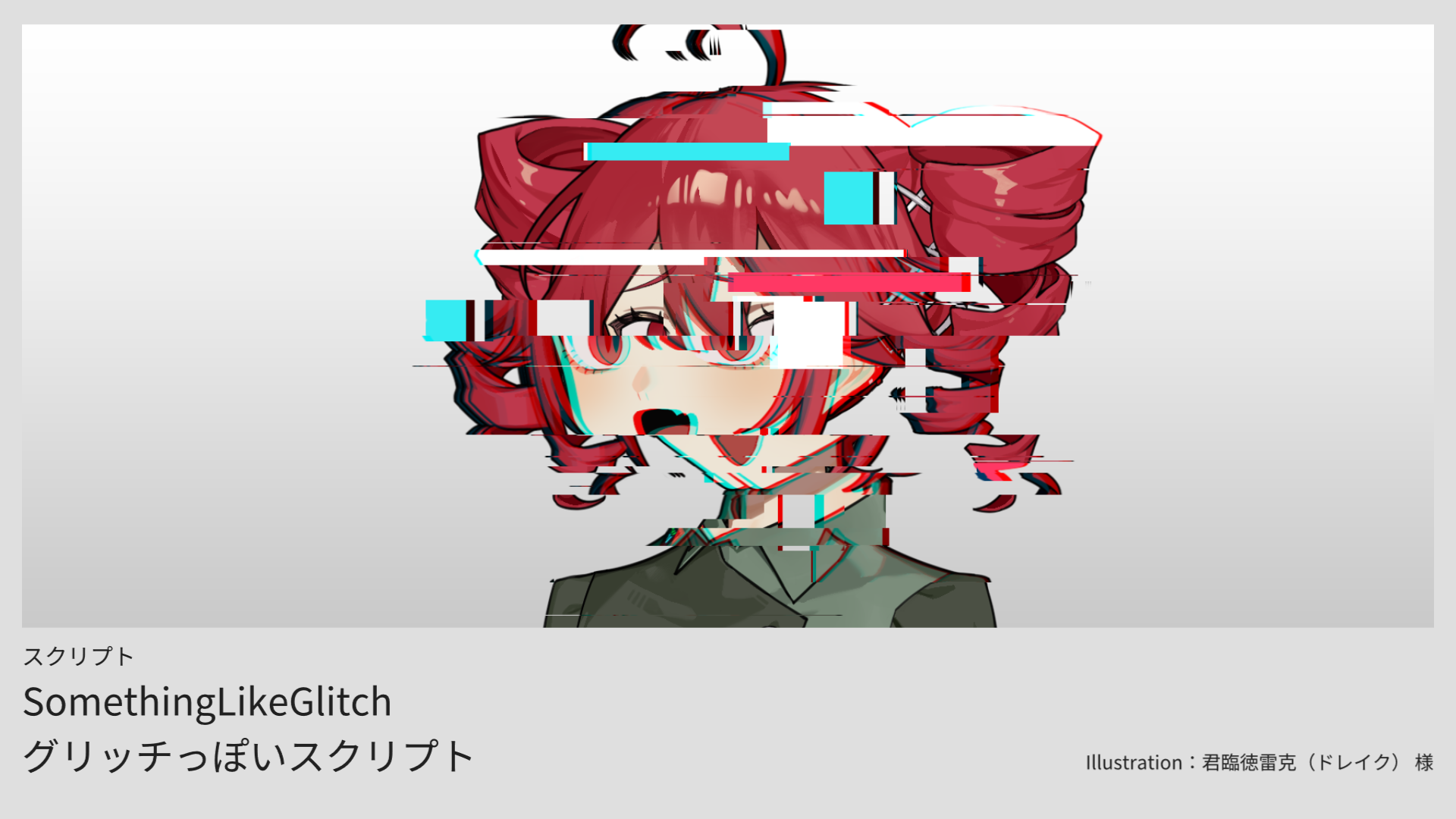
グリッチっぽいエフェクト
詳細説明
SomethingLikeGlitch

日本語 ▲ 🌐 Switch Language
概要
SomethingLikeGlitch は、AviUtl2 のオブジェクトにティアリング、カラーブロック、色ズレを加えるグリッチ効果スクリプトです。
正方形・長方形・細いラインを組み合わせ、2層の断片を重ねて画像をずらします。透明背景の立ち絵では、輪郭付近だけを処理し、内部を保護することもできます。
インストール方法
SomethingLikeGlitch_v1.0.2.au2pkg.zipを解凍せず、AviUtl2 のプレビュー画面へ直接ドラッグ&ドロップします。- 表示された内容を確認してインストールします。
- 対象オブジェクトへアニメーション効果を追加し、一覧から
SomethingLikeGlitchを選択します。
パッケージにはスクリプト本体と、英語・中国語の言語ファイルが含まれています。標準表示は日本語で、表示言語は AviUtl2 の言語設定に従います。
基本操作
ティアリング
強さ で効果の強さを調整します。0では効果全体を停止します。第2層の強さ は小さな形状を使う2回目のティアリングの移動量で、0にすると第2層を無効にします。
ズレ は断片の移動距離、ブロックサイズ は切り出す形状の基準サイズです。横伸び は長方形やラインを横に長くします。画像内容を引き伸ばす設定ではありません。
カバー率 で処理領域の選択率、ライン割合 で細いラインの比率を調整します。形状が重なるため、カバー率は画面の正確な面積率ではありません。
ティアリングモード の「滑らか」は連続的に変化し、「ステップ」は状態を段階的に切り替えます。変化速度 で速度、乱数シード でパターンを変更します。変化速度を0にしても元の動画・アニメーションは停止しません。
ティア元を空ける は標準でオンです。移動した断片の元位置を透明にします。
タイミング
タイミングモード では「連続」「周期」「ランダム」を選択できます。
「周期」と「ランダム」の 間隔 は、効果が終了してから次に始まるまでの待ち時間です。持続時間0.2秒・間隔1秒なら、0~0.2秒に効果が出て、次は1.2秒から始まります。
「ランダム」は持続時間と待ち時間の両方を変化させます。ランダム度 が0%なら固定値、100%ならそれぞれ設定値の50~150%になります。最初の効果は時刻0から始まり、各回の効果は重なりません。
エッジのみ
透明背景の素材で エッジのみ を有効にすると、輪郭付近だけを処理します。エッジ幅 で内側への作用幅を調整します。
保護範囲の境界は横・縦の階段状になります。元画像の透明輪郭そのものを四角くする機能ではありません。2層とも同じ保護範囲を使い、内部はカラーブロックや色ズレからも保護します。
カラーブロック
標準でオンです。ティアリングで移動する断片を、指定した3色のいずれかで着色します。
カバー率 が高いほど着色する断片が増え、100%ですべての対象断片を着色します。透明度や色の濃さを調整する値ではありません。元の断片のアルファは維持します。
ティアリングが無効な場合、独立したカラーブロックは生成しません。色ズレ処理は着色した断片にも適用されます。
色ズレ
ズレ で分離量、向き で方向を調整します。ティアリングに連動 がオンの場合、ティアリングの領域と方向に連動します。
タイプ は「赤・青」「赤・シアン」「緑・マゼンタ」「カスタム2色」から選択できます。カスタムでは2色を指定します。
詳細設定
ティアリング方向 は断片の移動方向です。
端の処理 は「透明」「端を延長」「ループ」から選択します。ティア元を空ける処理や輪郭保護では、画像外や保護領域の読み取りを制限する場合があります。
注意事項
- ズレ、ブロックサイズ、エッジ幅、色ズレのズレ量の百分率は、オブジェクト画像のキャンバス短辺が基準です。
- エッジのみは透明背景向けです。不透明画像ではキャンバス端が輪郭として扱われます。髪や腕の間の透明な隙間も対象です。
- 細い部分は全体が処理範囲に入ることがあります。エッジ幅が0の場合は効果全体を停止します。
- キャンバスを自動拡張しません。外側へ断片を移動する場合は、素材に透明な余白を用意してください。
中文
概要
SomethingLikeGlitch 是为 AviUtl2 对象添加撕裂、色块和 RGB 分离的故障效果脚本。
脚本组合方形、长方形和细线,通过两层相互重叠的碎块制造错位。对于透明背景的立绘,也可以只处理轮廓附近,保护人物内部。
安装方法
- 不要解压
SomethingLikeGlitch_v1.0.2.au2pkg.zip,直接将其拖放到 AviUtl2 的预览画面。 - 确认显示的内容后进行安装。
- 给需要处理的对象添加动画效果,从列表中选择
SomethingLikeGlitch。
安装包包含脚本本体,以及英文和简体中文语言文件。默认界面为日语,显示语言跟随 AviUtl2 的语言设置。
基本操作
撕裂
强度 调整效果强弱,0时关闭整个效果。第二层强度 控制使用较小图形进行第二次撕裂时的位移量,0时关闭第二层。
位移 控制碎块移动的距离,块尺寸 控制切割图形的基础尺寸。横向拉伸 让长方形和细线变长,不会把图片内容拉宽变形。
覆盖率 控制处理区域的选择比例,细线占比 控制细线的比例。由于碎块可以重叠,覆盖率不代表精确的画面面积占比。
撕裂模式 中,“平滑变化”连续过渡,“跳变”按阶段切换状态。变化速度 控制速度,随机种子 改变图案。变化速度为0时,原视频或动画仍继续播放。
撕裂留空 默认开启,碎块移走后,原位置留下透明空洞。
节奏
节奏模式 可选择“持续”“周期”和“随机”。
周期和随机模式下的 间隔,都是本次效果结束后到下一次开始前的等待时间。持续时间0.2秒、间隔1秒时,效果出现在0~0.2秒,下一次从1.2秒开始。
随机模式会同时改变持续时间和等待时间。随机程度 为0%时使用固定值;100%时,两者分别在设定值的50%~150%之间变化。第一次效果从对象时间0开始,各次效果不会重叠。
仅边缘
对透明背景素材开启 仅边缘,只处理轮廓附近。边缘宽度 控制向人物内部延伸的作用范围。
保护范围的边界由横竖阶梯组成,不会把原图本身的透明轮廓改成方形。两层使用相同的保护范围,内部也不会被色块和 RGB 分离覆盖。
色块
默认开启,将撕裂后移动的碎块变成指定三种颜色中的一种。
覆盖率 越高,变色碎块越多;100%时,所有参与处理的碎块都会变色。它不控制透明度或颜色浓淡,碎块保留原有透明度。
关闭撕裂时,不会独立生成色块。后续的 RGB 分离也会作用于变色碎块。
RGB分离
偏移 控制分离距离,方向 控制角度。开启 跟随撕裂 后,分离会跟随撕裂区域和方向。
类型 可选择红蓝、红青、绿品红或自定义双色。选择自定义双色后,可以分别指定两种颜色。
进阶设置
撕裂方向 控制碎块的移动方向。
边界处理 可选择透明、边缘延伸或循环。撕裂留空和轮廓保护可能限制对画布外及保护区的取样。
注意事项
- 位移、块尺寸、边缘宽度及 RGB 偏移的百分比,均以对象图片的画布短边为基准。
- 仅边缘适合透明背景素材。不透明图片会以画布边缘作为轮廓,头发和手臂间的透明缝隙也会参与处理。
- 细小部分可能整体落入处理范围。边缘宽度为0时,关闭整个效果。
- 不自动扩展画布。需要向人物外侧移动碎块时,请为素材留出透明边距。
English
Overview
SomethingLikeGlitch is an AviUtl2 script that adds tearing, colored blocks, and RGB separation to an object.
It combines squares, rectangles, and thin lines in two overlapping layers of displaced fragments. For character images with transparent backgrounds, processing can be restricted to the edges while protecting the interior.
Installation
- Do not extract
SomethingLikeGlitch_v1.0.2.au2pkg.zip. Drag and drop it directly onto the AviUtl2 preview window. - Review the displayed contents and install the package.
- Add an Animation Effect to the target object and select
SomethingLikeGlitchfrom the list.
The package includes the script and language files for English and Simplified Chinese. Japanese is the default, and the displayed language follows the AviUtl2 language setting.
Basic Usage
Tearing
Intensity adjusts effect strength. At zero, the entire effect is disabled. Layer 2 amount controls displacement in a second tearing pass that uses smaller shapes. Set it to zero to disable that layer.
Displacement controls how far fragments move. Block size controls the base size of the selected shapes. X stretch makes rectangles and lines wider without stretching the image content itself.
Coverage controls the selection rate of affected regions, while Line ratio controls the proportion of thin lines. Overlapping fragments mean Coverage is not an exact percentage of the visible image area.
In Tear mode, Smooth transitions continuously and Stepped switches between states. Change speed controls their speed, and Random seed changes the pattern. Setting Change speed to zero does not pause the source video or animation.
Leave gaps is enabled by default. Moved fragments leave transparent holes at their original positions.
Timing
Timing mode offers Continuous, Periodic, and Random.
In Periodic and Random modes, Interval is the waiting time after an effect ends and before the next one starts. With Duration set to 0.2 seconds and Interval to 1 second, the effect runs from 0 to 0.2 seconds and starts again at 1.2 seconds.
Random mode varies both the duration and the waiting time. At 0% Randomness, both are fixed. At 100%, each varies between 50% and 150% of its configured value. The first event starts at object time zero, and events do not overlap.
Edges Only
Enable Edges only on an image with a transparent background to restrict processing to its outline. Edge width controls how far the affected area extends inward.
The protected boundary uses horizontal and vertical steps. This does not convert the original transparent silhouette into a rectangular outline. Both layers share the same protected interior, which is also protected from colored blocks and RGB separation.
Color Blocks
Enabled by default. Moving tear fragments are recolored using one of the three specified colors.
Higher coverage recolors more fragments; at 100%, all eligible fragments are recolored. This setting does not change opacity or color saturation. Each fragment retains its original alpha.
Color blocks are not generated independently when tearing is disabled. RGB separation also affects the recolored fragments.
RGB Separation
Offset controls separation distance and Direction sets its angle. Enable Link to tear to follow the tearing regions and direction.
Type offers Red/Blue, Red/Cyan, Green/Magenta, and Custom 2-color. The custom option lets you specify both colors.
Advanced
Tear angle sets the direction in which fragments move.
Edge handling offers Transparent, Clamp, and Loop. Leave gaps and interior protection may restrict sampling outside the canvas or within protected regions.
Notes
- Displacement, Block size, Edge width, and RGB Offset percentages use the shorter side of the object's image canvas as their reference.
- Edges only is intended for transparent backgrounds. Opaque images use the canvas boundary as their outline. Transparent gaps between hair or limbs also count as edges.
- Thin features may fall entirely within the affected area. Setting Edge width to zero disables the entire effect.
- The canvas is not expanded automatically. Leave transparent margins if fragments need to move outward.